
Android-CoordinatorLayout

CoordinatorLayout被称为联动布局,这是Design Support Library中最重要与最难的部分。

首先我们要把CoordinatorLayout作为根布局,导入下面的依赖

compile ‘com.android.support:design:26.1.0’

1.有时候我们会看到一个底部有一个块,然后可以拖上来成为一个布局,类似于下面这种
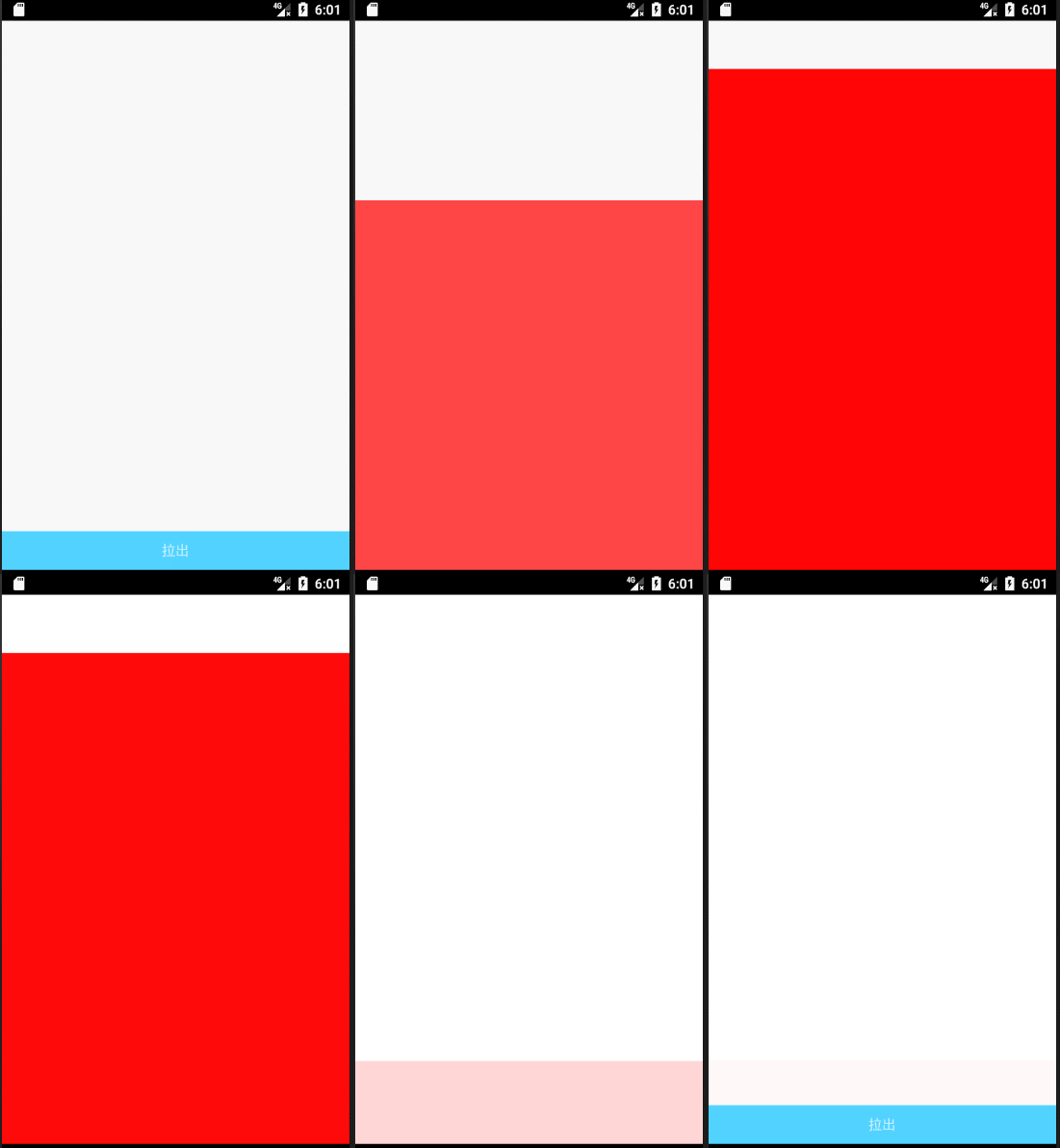

要使用这种效果只要两个代码,第一个是设置露出的高度,第二个一定要这么写,然后你就可以拖动将布局拖出来了
1
2
3
4
...
app:behavior_peekHeight="40dp"
app:layout_behavior="@string/bottom_sheet_behavior"
...

想要改变脱出后头部的样式和布局,那么你就需要再代码里面设置了

1
2
3
4
5
6
7
8
9
10
11
12
13
14
15
16
17
18
19
20
21
22
23
24
25
26
27
28
29
30
31
32
33
34
35
36
37
38
39
private RelativeLayout rsb;
private TextView text,text1;
private BottomSheetBehavior behavior;
@Override
protected void onCreate(@Nullable Bundle savedInstanceState) {
super.onCreate(savedInstanceState);
setContentView(R.layout.layout);
/**根布局**/
rsb=findViewById(R.id.rsb);
text=findViewById(R.id.text);
text1=findViewById(R.id.text1);
behavior= BottomSheetBehavior.from(rsb);
behavior.setBottomSheetCallback(new BottomSheetBehavior.BottomSheetCallback() {
@Override
public void onStateChanged(@NonNull View bottomSheet, int newState) {
/**滑动结束回调方法,BottomSheetBehavior状态的改变*/
if(newState==BottomSheetBehavior.STATE_EXPANDED){
/**当结束后是滑动出来的**/
text1.setVisibility(View.VISIBLE);
}else if(newState==BottomSheetBehavior.STATE_COLLAPSED){
/**当结束后是收缩进去的**/
text.setVisibility(View.VISIBLE);
bottomSheet.setAlpha(1f);
}
}
@Override
public void onSlide(@NonNull View bottomSheet, float slideOffset) {
/**滑动回调方法,slideOffset是所占高度的比例,可以用这个来做一些动画*/
bottomSheet.setAlpha(slideOffset);
if(text1.getVisibility()==View.GONE){
/**滑动开始如果 点击收缩 按钮为隐藏**/
text.setVisibility(View.GONE);
}else{
/**滑动开始如果 点击收缩 按钮为显示**/
text1.setVisibility(View.GONE);
}
}
});
}

下面放出布局代码

1
2
3
4
5
6
7
8
9
10
11
12
13
14
15
16
17
18
19
20
21
22
23
24
25
26
27
28
29
30
31
32
33
34
35
<?xml version="1.0" encoding="utf-8"?>
<android.support.design.widget.CoordinatorLayout xmlns:android="http://schemas.android.com/apk/res/android"
android:layout_width="match_parent"
android:layout_height="match_parent"
android:id="@+id/coordinator"
android:background="#ffffff"
xmlns:app="http://schemas.android.com/apk/res-auto">
<RelativeLayout
android:id="@+id/rsb"
app:behavior_peekHeight="40dp"
app:layout_behavior="@string/bottom_sheet_behavior"
android:layout_width="match_parent"
android:layout_height="match_parent">
<TextView
android:id="@+id/text"
android:text="拉出"
android:background="#52D3FF"
android:gravity="center"
android:layout_width="match_parent"
android:layout_height="40dp" />
<TextView
android:id="@+id/text1"
android:text="点击收缩"
android:gravity="center"
android:background="#52D3FF"
android:visibility="gone"
android:layout_width="match_parent"
android:layout_height="40dp" />
<RelativeLayout
android:background="#ff0000"
android:layout_marginTop="40dp"
android:layout_width="match_parent"
android:layout_height="match_parent"></RelativeLayout>
</RelativeLayout>
</android.support.design.widget.CoordinatorLayout>

2.看gif
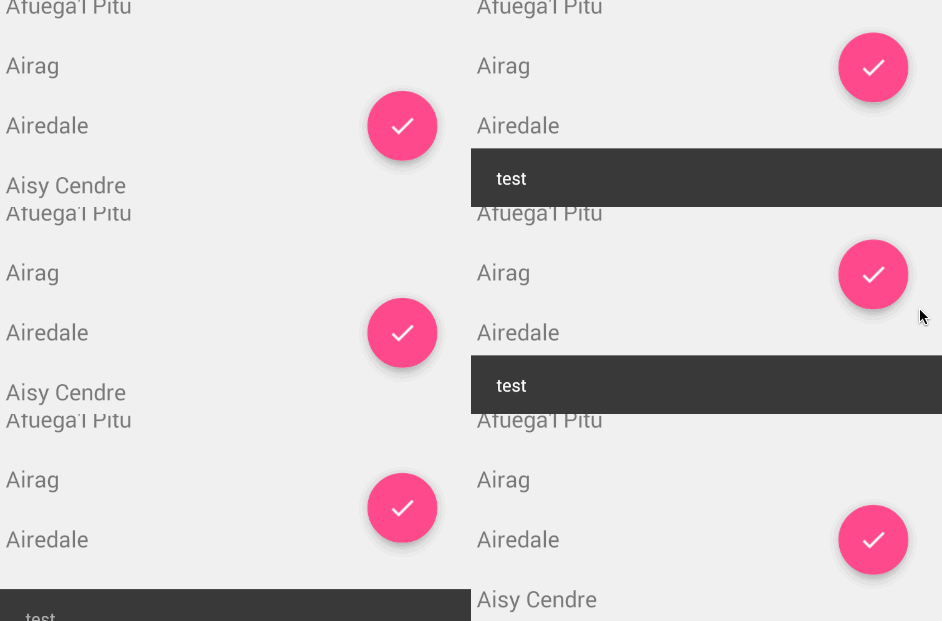

想要实现这种效果也很简单,将FloatingActionButton放在CoordinatorLayout里面,代码中将CoordinatorLayout传给Snackbar就行了
1
2
3
...
Snackbar.make(coordinatorLayout,"你好吗",Snackbar.LENGTH_LONG).show();
..

3.AppBarLayout子View的动作

内部的子View通过在布局中加app:layout_scrollFlags设置执行的动作,那么app:layout_scrollFlags可以设置哪些动作呢?分别如下:
(1) scroll:值设为scroll的View会跟随滚动事件一起发生移动。
(2) enterAlways:值设为enterAlways的View,当ScrollView往下滚动时,该View会直接往下滚动。而不用考虑ScrollView是否在滚动。
(3) exitUntilCollapsed:值设为exitUntilCollapsed的View,当这个View要往上逐渐“消逝”时,会一直往上滑动,直到剩下的的高度达到它的最小高度后,再响应ScrollView的内部滑动事件。
(4) enterAlwaysCollapsed:是enterAlways的附加选项,一般跟enterAlways一起使用,它是指,View在往下“出现”的时候,首先是enterAlways效果,当View的高度达到最小高度时,View就暂时不去往下滚动,直到ScrollView滑动到顶部不再滑动时,View再继续往下滑动,直到滑到View的顶部结束。

1
2
3
4
5
6
7
8
9
10
11
12
13
14
15
16
17
18
19
20
21
<android.support.design.widget.AppBarLayout
android:background="#ff0000"
android:layout_width="match_parent"
android:layout_height="200dp">
<android.support.v7.widget.Toolbar
app:title="标题"
app:layout_scrollFlags="scroll|enterAlwaysCollapsed|enterAlways" //改这里就行了,混合使用
android:layout_width="match_parent"
android:minHeight="50dp"
android:gravity="bottom"
android:layout_height="match_parent">

</android.support.v7.widget.Toolbar>
</android.support.design.widget.AppBarLayout>
<android.support.v7.widget.RecyclerView
android:id="@+id/recyle"
app:layout_behavior="@string/appbar_scrolling_view_behavior"
android:layout_width="match_parent"
android:layout_height="match_parent">

</android.support.v7.widget.RecyclerView>

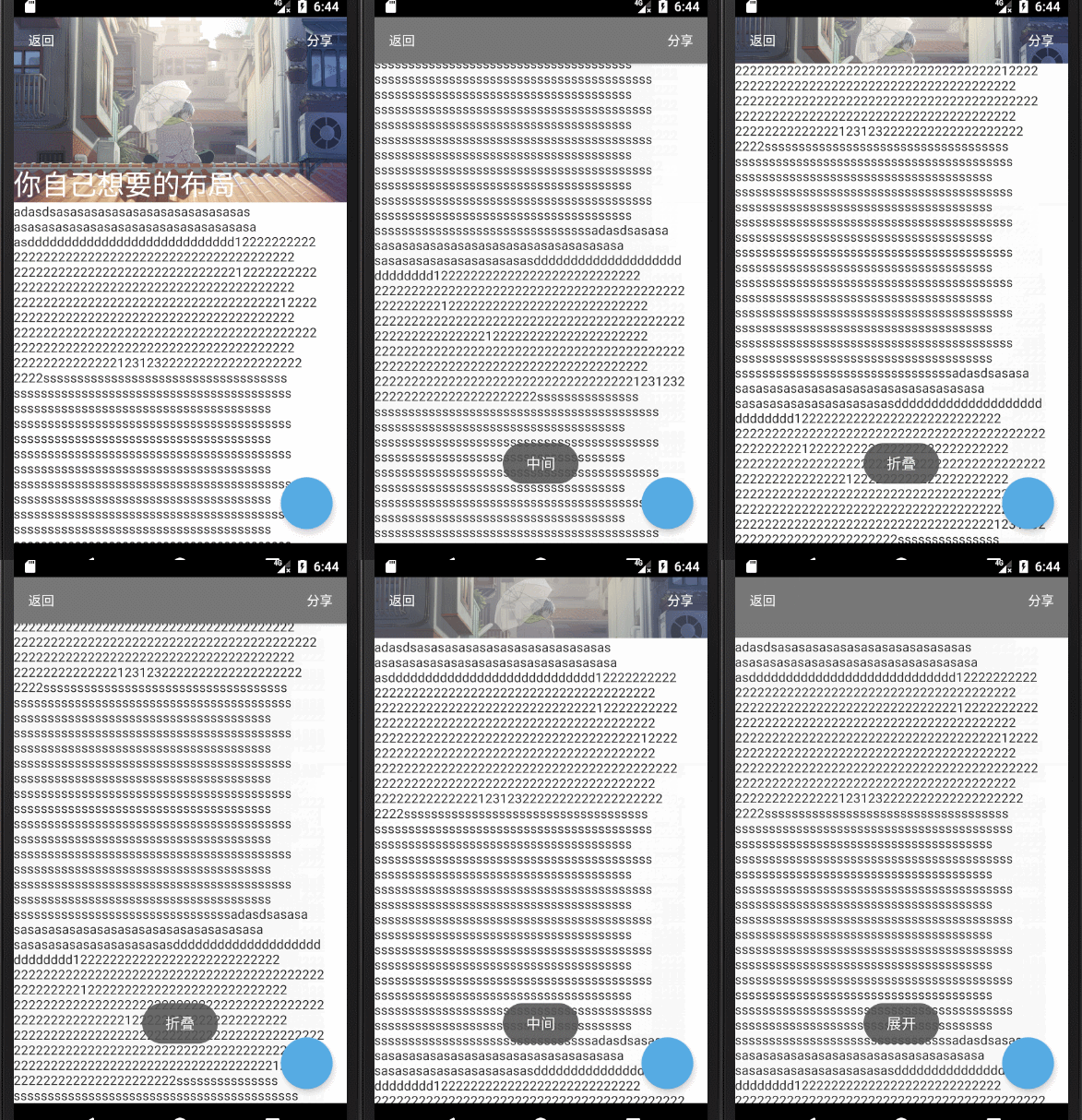
4.实现下面这种效果

1
2
3
4
5
6
7
8
9
10
11
12
13
14
15
16
17
18
19
20
21
22
23
24
25
26
27
28
29
30
31
32
33
34
35
36
37
38
39
40
41
42
43
44
45
46
47
48
49
50
51
52
53
54
55
56
57
58
59
60
61
62
63
64
65
66
67
68
69
70
71
72
73
74
<android.support.design.widget.CoordinatorLayout xmlns:android="http://schemas.android.com/apk/res/android"
android:layout_width="match_parent"
android:layout_height="match_parent"
android:id="@+id/coordinator"
android:background="#ffffff"
xmlns:app="http://schemas.android.com/apk/res-auto">
<android.support.design.widget.AppBarLayout
android:id="@+id/avps"
android:background="#cccccc"
android:layout_width="match_parent"
android:layout_height="200dp">
<android.support.design.widget.CollapsingToolbarLayout
android:id="@+id/avps1"
app:layout_scrollFlags="scroll|exitUntilCollapsed"
android:layout_width="match_parent"
android:layout_height="match_parent">
<RelativeLayout
app:layout_collapseMode="parallax"
android:layout_width="match_parent"
android:layout_height="match_parent">
<ImageView
android:src="@drawable/as"
android:scaleType="centerCrop"
android:layout_width="match_parent"
android:layout_height="match_parent" />

<TextView
android:textColor="#ffffff"
android:layout_width="wrap_content"
android:layout_height="wrap_content"
android:layout_alignParentBottom="true"
android:layout_alignParentStart="true"
android:textSize="30sp"
android:text="你自己想要的布局" />
</RelativeLayout>
<android.support.v7.widget.Toolbar
android:layout_width="match_parent"
app:layout_collapseMode="pin"
android:layout_height="50dp">
<TextView
android:textColor="#ffffff"
android:text="返回"
android:layout_width="wrap_content"
android:layout_height="wrap_content" />
<TextView
android:textColor="#ffffff"
android:text="分享"
android:gravity="right"
android:paddingRight="15dp"
android:layout_width="match_parent"
android:layout_height="wrap_content" />
</android.support.v7.widget.Toolbar>
</android.support.design.widget.CollapsingToolbarLayout>
</android.support.design.widget.AppBarLayout>
<android.support.v4.widget.NestedScrollView
app:layout_behavior="@string/appbar_scrolling_view_behavior"
android:layout_width="match_parent"
android:layout_height="match_parent">
<TextView
android:textColor="#2b2b2b"
android:text="a"
android:layout_width="match_parent"
android:layout_height="match_parent" />
</android.support.v4.widget.NestedScrollView>
<android.support.design.widget.FloatingActionButton
android:id="@+id/FloatingActionButton"
app:rippleColor="#cccccc"
app:backgroundTint="#56abe4"
android:layout_gravity="right|bottom"
android:layout_marginRight="15dp"
android:layout_marginBottom="15dp"
android:layout_width="wrap_content"
android:layout_height="wrap_content" />
</android.support.design.widget.CoordinatorLayout>

监听事件,

1
2
3
4
5
6
7
8
9
10
11
12
13
14
15
16
17
18
19
20
21
22
23
24
25
26
27
28
29
30
31
32
33
34
35
36
37
38
39
40
41
42
43
44
45
46
47
48
49
50
51
52
53
54
55
56
57
58
59
60
61
62
63
64
65
66
67
68
69
70
71
public abstract class AppBarStateChangeListener implements AppBarLayout.OnOffsetChangedListener {
public enum State {
EXPANDED,
COLLAPSED,
IDLE
}
private State mCurrentState = State.IDLE;
@Override
public final void onOffsetChanged(AppBarLayout appBarLayout, int i) {
if (i == 0) {
if (mCurrentState != State.EXPANDED) {
onStateChanged(appBarLayout, State.EXPANDED);
}
mCurrentState = State.EXPANDED;
} else if (Math.abs(i) >= appBarLayout.getTotalScrollRange()) {
if (mCurrentState != State.COLLAPSED) {
onStateChanged(appBarLayout, State.COLLAPSED);
}
mCurrentState = State.COLLAPSED;
} else {
if (mCurrentState != State.IDLE) {
onStateChanged(appBarLayout, State.IDLE);
}
mCurrentState = State.IDLE;
}
}
public abstract void onStateChanged(AppBarLayout appBarLayout, State state);
}

--------------------------------------------------------------------------
public class Coord3 extends AppCompatActivity {
private FloatingActionButton floatingActionButton;
private CoordinatorLayout coordinatorLayout;
private BottomSheetBehavior behavior;
private AppBarLayout avps;
private CollapsingToolbarLayout avps1;
public static int expendedtag=2;
@Override
protected void onCreate(@Nullable Bundle savedInstanceState) {
super.onCreate(savedInstanceState);
setContentView(R.layout.layout3);
floatingActionButton=findViewById(R.id.FloatingActionButton);
coordinatorLayout=findViewById(R.id.coordinator);
floatingActionButton.setOnClickListener(new View.OnClickListener() {
@Override
public void onClick(View view) {
Snackbar.make(coordinatorLayout,"你好吗",Snackbar.LENGTH_LONG).show();
}
});
avps=findViewById(R.id.avps);
avps1=findViewById(R.id.avps1);
avps1.setTitle("Title");
avps.addOnOffsetChangedListener(new AppBarStateChangeListener() {
@Override
public void onStateChanged(AppBarLayout appBarLayout, State state) {
if( state == State.EXPANDED ) {
//展开状态
Toast.makeText(Coord3.this, "展开", Toast.LENGTH_SHORT).show();
}else if(state == State.COLLAPSED){
//折叠状态
Toast.makeText(Coord3.this, "折叠", Toast.LENGTH_SHORT).show();
avps1.setContentScrimColor(Color.parseColor("#777777")); //设置这个可以展现出那种透明的感觉
}else {
//中间状态
Toast.makeText(Coord3.this, "中间", Toast.LENGTH_SHORT).show();
}

}
});
}
}

如果你希望拖动过程中状态栏是透明的,可以在CollapsingToolbarLayout中加 app:statusBarScrim=”@android:color/transparent”,并且在onCreate中调用getWindow().addFlags(WindowManager.LayoutParams.FLAG_TRANSLUCENT_STATUS)将状态栏设置为透明就好啦~